Phone line: Android bridge (recommended)
A spare Android phone with your SIM card sits next to the Mac, plugged in by USB. When someone calls that number, an app on the phone, the bridge, hands the call to the Mac. Pepper hears the call and speaks into it as audio data, not through a speaker and microphone on the Mac. The bridge can also place a normal cellular call from your number. For now that means the test call in Step 4; Pepper calling businesses for you is planned.
- Cost: nothing beyond the phone plan you already pay for. The bridge has no fees of its own; calls count against your plan like any other, and talking to Pepper on a call uses the model the way Ask does.
- Setup time: about 30 minutes. One script handles most of the setup.
- Tested: Pixel 8a, Android 16, AT&T, Mac mini on macOS 27, October 2026. The outgoing test call and two-way audio work. Pepper answers incoming calls from you and your contacts, and takes voicemail from everyone else.
The bridge app (android-voice-sip-agent) is a young hobby project. It relies on hidden Android internals, so an Android update can break it. Other options are in the overview.
A call reaches the bridge app on the phone, crosses your home Wi-Fi to FreeSWITCH, a small phone-call server on the Mac, and ends up with Pepper.
| Part | What it does | Where it runs |
|---|---|---|
| Shizuku | Gives the bridge app the extra Android permissions it needs to reach call audio, without rooting the phone | Phone |
| voice-sip-agent (the bridge) | Turns cellular calls into internet calls (SIP) and back | Phone |
| FreeSWITCH | A small phone-call server. The phone signs in to it and Pepper talks through it | Mac |
| adb | Google's USB tool. The Mac uses it to set up the phone, and to restart Shizuku after the phone reboots | Mac |
| Chatterbox Turbo | Pepper's voice. Everything Pepper says on a call is made with it, on the Mac | Mac |
| parakeet-mlx | Pepper's local speech-to-text | Mac |
The phone and the Mac only talk to each other over your home network. What leaves the Mac is the same as for any other question: what you ask Pepper on a call goes to Claude, messages reach you on Telegram, and your speech goes to OpenAI for transcription only if you chose that. Your passphrase is always transcribed on the Mac.
- The Mac Pepper runs on: Apple Silicon, with Homebrew installed (the install guide set it up), and Pepper's speech tools (Step 2).
- An Android phone, Android 11 or newer. A Pixel is the safest choice because the bridge's developer tests on one. A Samsung Galaxy A15 was reported working, with Auto Blocker turned off. The bridge's device list has the rest. The phone must be carrier-unlocked or already on your carrier.
- Your SIM card or eSIM, moved into that phone.
- A USB-C cable that carries data. Some charge-only cables don't.
- Home Wi-Fi that both the Mac and the phone are on.
The Mac gets full control of this phone over USB, so it should become a dedicated Pepper phone with none of your personal accounts on it.
-
If it has your Google account, remove it before you reset. Go to Settings → Passwords & accounts → your account → Remove account. If you skip this, the anti-theft lock will ask for that account again after the reset.
-
Factory reset: Settings → System → Reset options → Erase all data.
-
During setup, join your home Wi-Fi and skip the Google sign-in. Also skip backup, Assistant and fingerprint. No Google account is needed, because the apps are installed from the Mac and not from Play Store. That also stops Play Store from updating the bridge's apps on its own.
-
Put your SIM in, or transfer your eSIM, and make one ordinary test call.
-
Turn on Developer options: Settings → About phone → tap Build number seven times. If it says "No need, you are already a developer", they're already on.
-
Turn on USB debugging: Settings → System → Developer options → USB debugging on.
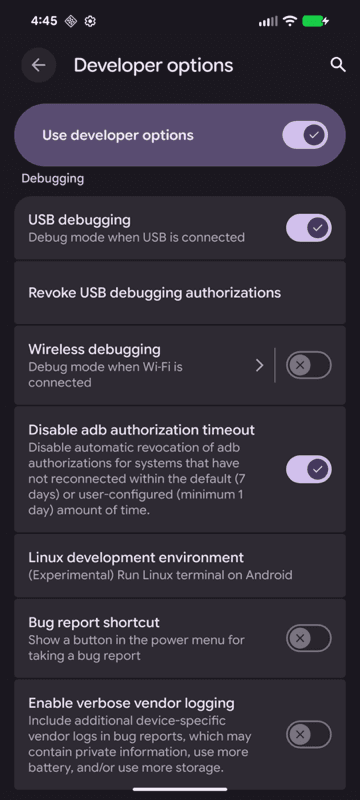
The setup script turns on Disable adb authorization timeout, shown in the screenshot, for you.
-
Plug the phone into the Mac. When the phone asks Allow USB debugging?, tick Always allow from this computer and tap Allow. If no prompt appears, pull down the notification shade, tap the USB notification, choose File transfer, and look again.
From the Pepper folder on the Mac, first install what Pepper uses to hear and speak:
brew install uv ffmpeg       # answer y when Homebrew lists ffmpeg's dependencies
uv tool install parakeet-mlx # local speech-to-text
scripts/setup-tts.sh         # Pepper's voice; downloads the model once
Then set PEPPER_TTS=chatterbox in .env. Local speech-to-text is required even if Pepper's other transcription
uses OpenAI, because the passphrase you say to prove it's you on a call (Step 5) is always transcribed on the Mac.
Now run the bridge setup:
scripts/phone/pepper-phone.sh macThis:
- installs Google's Android platform tools and FreeSWITCH with Homebrew
- creates
~/pepper-phone/, which holds the passwords, config, logs and downloads, and is never part of the repo - writes a locked-down FreeSWITCH config: one account (the phone), no demo accounts, and an admin socket that only listens on the Mac itself
- makes the test greeting in Pepper's voice
- starts adb and FreeSWITCH as background services that come back when you log in after a restart
Then change one firewall setting yourself. It's a macOS security setting, so Pepper never changes it for you:
- System Settings → Network → Firewall → Options…
- On the freeswitch row, click the arrows on the right and choose Allow incoming connections.
- Click OK. macOS asks for an admin account's name and password; a Standard user's won't work.
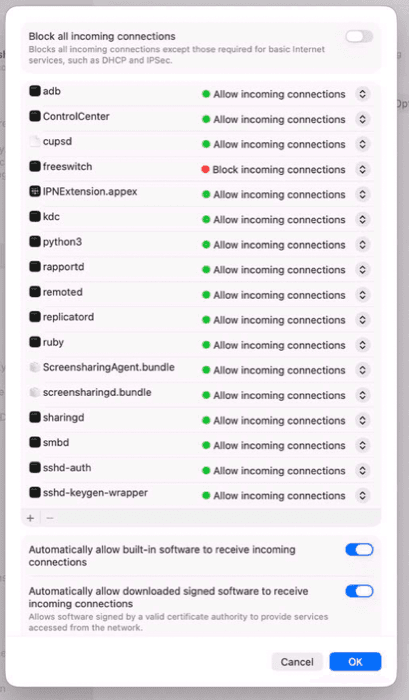
Leave the firewall itself on. If freeswitch shows a red dot (Block), the phone can't sign in.
With the phone plugged in and unlocked:
scripts/phone/pepper-phone.sh pixelpixel is the command for any supported phone, not only a Pixel. This:
- downloads fixed versions of Shizuku and the bridge app from their official GitHub releases, and verifies their checksums
- installs both over USB
- turns off automatic system updates on the phone
- starts Shizuku from the Mac. That's why the phone has to stay plugged in, and it means you never need wireless debugging
- tells the bridge the Mac's address, makes it the default phone app, and sets the audio mode that works on tested phones
- leaves takeover off until Step 4
Once Shizuku is running, its app looks like this:
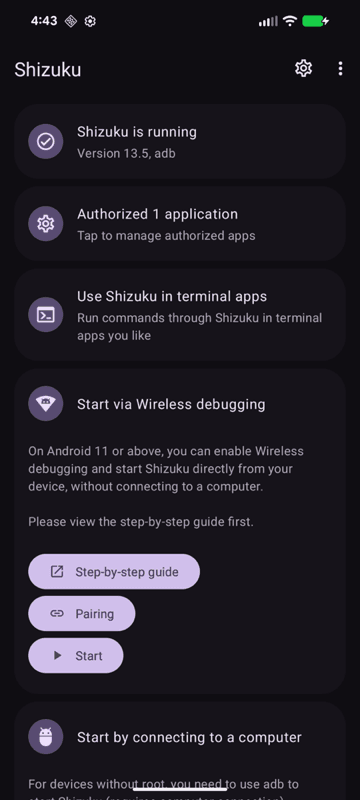
The bridge app blocks screenshots, so there's no picture of it here. When it's working, its Health section shows Shizuku CONNECTED uid 2000, Call audio access and Doze allowlisted with filled dots, and, once takeover is on, SIP registration: registered.
scripts/phone/pepper-phone.sh statusEvery line should start with ok, except the passphrase line, which says !! until Step 5:
ok  adb service
ok  phone on USB: Pixel 8a
ok  FreeSWITCH running
ok  audio clock 20.000 ms per 20 ms
ok  firewall allows FreeSWITCH
ok  Shizuku running
ok  bridge takeover off (phone behaves normally; 'scripts/phone/pepper-phone.sh on' to bridge)
!!  no phone passphrase: your calls unlock nothing (npm run phone -- passphrase)
ok  dialplan carries Pepper's call token
Then call a phone you can answer, on a number that isn't the bridge phone's:
scripts/phone/pepper-phone.sh on               # the phone's calls now go through the Mac
scripts/phone/pepper-phone.sh test-call 4155550123
scripts/phone/pepper-phone.sh off              # back to a normal phone
Answer it. You'll hear Pepper's greeting, then everything you say is echoed back, so you can check audio in
both directions. Hang up when you're done, then run the off line.
Once takeover is on, every call to the bridge phone's number goes to Pepper. What happens depends on who's calling:
| Caller | What Pepper does |
|---|---|
| You, from the number listed as owner | Asks for your spoken passphrase, then talks with you the way it does on Telegram: questions, "remind me to…", and so on. Three wrong tries and it hangs up and warns you on Telegram |
| A contact you listed | Says it's your AI assistant and that the call is transcribed, takes a message, and sends it to you on Telegram |
| Anyone else | Voicemail: the same disclosure, a tone, one message, sent to you on Telegram |
Exactly what each caller hears, and everything about the passphrase, is in Talking to Pepper by phone.
1. Your number and your contacts. Create data/phone/callers.json in the Pepper folder on the Mac. It stays
on your Mac and is never part of the repo:
{
  "owner": "+14155550123",
  "contacts": [
    { "name": "Sam", "number": "+14155550199" }
  ]
}
2. Your passphrase. In a terminal on the Mac (you type it twice, with the text hidden; only a scrambled form, a salted hash, is stored):
npm run phone -- passphrase
npm run phone -- callers      # check: shows the last 4 digits of each number and whether the passphrase is set
Pick three or more ordinary words you can say clearly. To change it later, run the same command again (more).
3. Turn it on. Add PEPPER_PHONE=on to Pepper's .env and restart Pepper. The log shows
[phone] waiting for calls on 127.0.0.1:8084. Then run scripts/phone/pepper-phone.sh on. If your number is in
callers.json and no passphrase is set, it asks for one first and leaves calls off until it's saved.
The phone line in npm run doctor shows the owner number, whether a passphrase is set, and how many contacts
you listed.
If Pepper's voice (Chatterbox) fails mid-call, the Mac's built-in voice stands in and Pepper tells you on Telegram.
| Situation | What to do |
|---|---|
The phone restarted (update, power cut), or status says Shizuku not running | scripts/phone/pepper-phone.sh start-shizuku |
| You want to use the phone yourself | scripts/phone/pepper-phone.sh off, then on when you're done |
| Something seems wrong | scripts/phone/pepper-phone.sh status. Lines starting with !! say what's wrong, and most give the fix. |
| An Android update is offered | Don't install it without testing first. It can break the bridge. |
Keep the phone plugged in and charging. Its Wi-Fi must stay on.
These are the problems we hit on the first real setup, in the order we hit them.
| Symptom | Cause | Fix |
|---|---|---|
adb devices lists nothing | USB debugging is off, or the Allow prompt wasn't tapped | Step 1.6–1.7. Unplug and replug the phone, then tap Allow |
adb works once, then cannot connect to daemon / Address already in use | adb's native USB driver crashes on macOS 27, and with two Mac users, both users' adb processes try to use the same port | The script runs adb as one service with ADB_LIBUSB=1. Don't run adb from the other user |
Bridge: register failed: 408 Request Timeout | The macOS firewall blocks FreeSWITCH | Step 2 firewall setting |
Bridge: register failed: 403 Forbidden, and the FreeSWITCH log says Can't find user; or calls fail with Context pepper not found | FreeSWITCH's config loader silently drops any line containing <include>, so a file written as <include><user …> or <include><context …> on one line loads as if it were empty | Run scripts/phone/pepper-phone.sh mac again. It keeps <include> on its own line, and puts the account inline |
| The phone signs in without a password | apply-inbound-acl (and apply-register-acl, if added) in FreeSWITCH skip authentication for matching addresses | The script removes the default apply-inbound-acl line. Don't add either back |
The test call rings and is answered, but there's silence; the bridge log says ignoring user-placed outgoing call | In "alongside your dialer" mode the bridge failed to recognise its own call (Pixel 8a, Android 16) | The script makes the bridge the default phone app (call_access=2) |
| Audio is garbled and laggy, like a bad connection | macOS runs background services at low priority and stretches FreeSWITCH's 20 ms audio clock to ~47 ms | The script sets ProcessType=Interactive. status shows the clock |
The bridge says Shizuku not running right after a restart | After a restart, Shizuku only reconnects when the bridge app comes to the front | start-shizuku opens the app for you |
Logs: FreeSWITCH writes to ~/pepper-phone/fs-log/freeswitch.log. View the bridge's log with
adb logcat -s VoiceSipAgent, which only shows the last two digits of phone numbers.
- The phone account password, the FreeSWITCH admin password and its default password are generated at random on
your Mac, stored in
~/pepper-phone/secrets.env(readable only by you), and never printed. One exception: during Step 3 the bridge app takes its password as a command argument, so it is visible for a moment to anyone listing processes on the Mac. - FreeSWITCH is configured for your home network only, and the phone's sign-in and the admin socket both need a password. No router port forwarding is needed. Don't add any.
- Between the phone and the Mac, sign-in and call audio cross your home Wi-Fi unencrypted. Someone on your Wi-Fi could record a call, including your spoken passphrase (more).
- The bridge app refuses emergency numbers. Call emergency services from a normal phone.
- The bridge phone stores nothing of yours except the password it uses to sign in to the Mac.
- Pepper takes calls on
127.0.0.1:8084, which any program on the Mac can reach. So FreeSWITCH's dialplan, its rules for handling each call, sets a channel variable,pepper_token, to a random secret before it hands each call over, and Pepper refuses any call that does not carry it. The secret lives indata/phone/token, readable only by you.pepper-phone.sh maccreates it and writes it into the dialplan, and Pepper creates it the first time it starts if it is missing. Ifstatussays the token is missing or different, runscripts/phone/pepper-phone.sh mac --config-only. - The script passes FreeSWITCH's admin password to
fs_cliin a private config file (~/pepper-phone/fs-cli/.fs_cli_conf), not on the command line, where other users could see it.
scripts/phone/pepper-phone.sh off
launchctl bootout gui/$(id -u)/com.pepper.freeswitch; launchctl bootout gui/$(id -u)/com.pepper.adb
rm ~/Library/LaunchAgents/com.pepper.freeswitch.plist ~/Library/LaunchAgents/com.pepper.adb.plist
rm -rf ~/pepper-phone
Then take PEPPER_PHONE=on out of .env and restart Pepper. Your callers list, passphrase and call token stay in
data/phone until you delete that folder.
On the phone, uninstall Voice SIP Agent and Shizuku, and set your usual phone app back in Settings → Apps → Default apps → Phone app. Automatic system updates stay off until you turn them back on, or factory reset the phone.
Overview
Pepper can answer real phone calls: it picks up when you ring it (and say your passphrase), and takes messages and voicemail from anyone else. For that, Pepper needs a phone line it can control from…
Talking to Pepper by phone
Once the Android bridge, a spare Android phone plugged into the Mac, is set up, Pepper answers that phone's number.